Layered PSD Test: Open, Edit, Save and Reopen in PhotoCraft Web
A sample PSD with editable text, a layer mask and an adjustment layer, and a repeatable walkthrough that shows the layers survive a save and reopen in the hosted editor.
Última actualización: 2026-11-16
The short answer
You can check this yourself in about two minutes: download one small layered PSD, open it in the hosted editor, edit it, save it, reopen it and see what survived. This page walks through exactly that, with screenshots from the hosted editor and a record of what was tested. Below the walkthrough is what the test does not prove.
Download sample PSD Open Editor
Result of the last run: all steps passed (26 of 26 checks), on PhotoCraft v0.23.1.
What was tested
| PhotoCraft version | v0.23.1, read from the editor page during the test (released 2026-11-12). |
| Browser | Google Chrome 157.0.8103.78 |
| Operating system | Windows 11 (10.0.28000) |
| Renderer | WebGPU |
| Test date | 2026-11-16 |
| Tested against | photocraftweb.online/editor |
| Sample file | photocraft-sample-layers.psd, 55,399 bytes, SHA-256 965086c2baee6cddfe71e659ba2d7c41af852bc74494504d146ca7c8d38f953e |
The screenshots below come from that run. The test script downloads the sample from the same link you see here, so the file it opened is the file you download.
The sample file
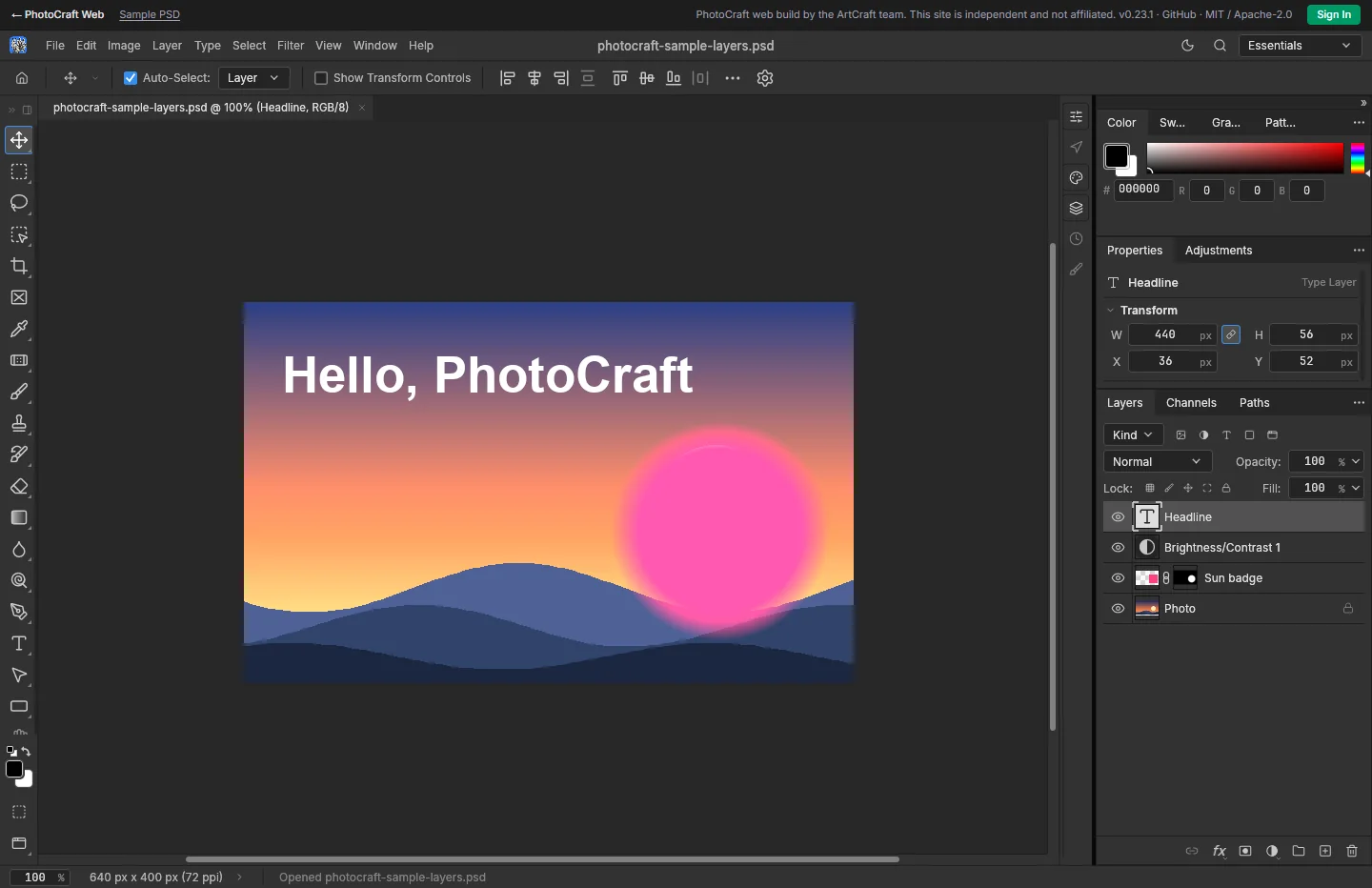
photocraft-sample-layers.psd is a 640 × 400 RGB image with four layers, bottom to top:
- Photo: a raster picture.
- Sun badge: a raster layer with a soft round layer mask.
- Brightness/Contrast 1: an adjustment layer (brightness +35, contrast +25).
- Headline: an editable type layer reading "Hello, PhotoCraft", set in Inter, the font the web build ships with.
It was not made in Photoshop. The file is written byte by byte from Adobe's published PSD file format by a short script, so PhotoCraft is asked to read a file it did not write itself. A reader that is not PhotoCraft (psd-tools) reads all four layers, the mask, the adjustment settings and the text correctly. A file saved by Photoshop itself would be a better test, and this one stands in until there is one. Treat a pass here as "PhotoCraft handles a spec-conformant layered PSD", not "PhotoCraft handles everything Photoshop writes".
Walkthrough
1. Open the sample PSD
Download the sample above, open the editor, then choose File → Open… (or drop the file onto the editor). The Layers panel lists the four layers; the mask shows as a thumbnail next to Sun badge, and Headline is marked as a type layer.
2. Change the headline and switch the adjustment layer off
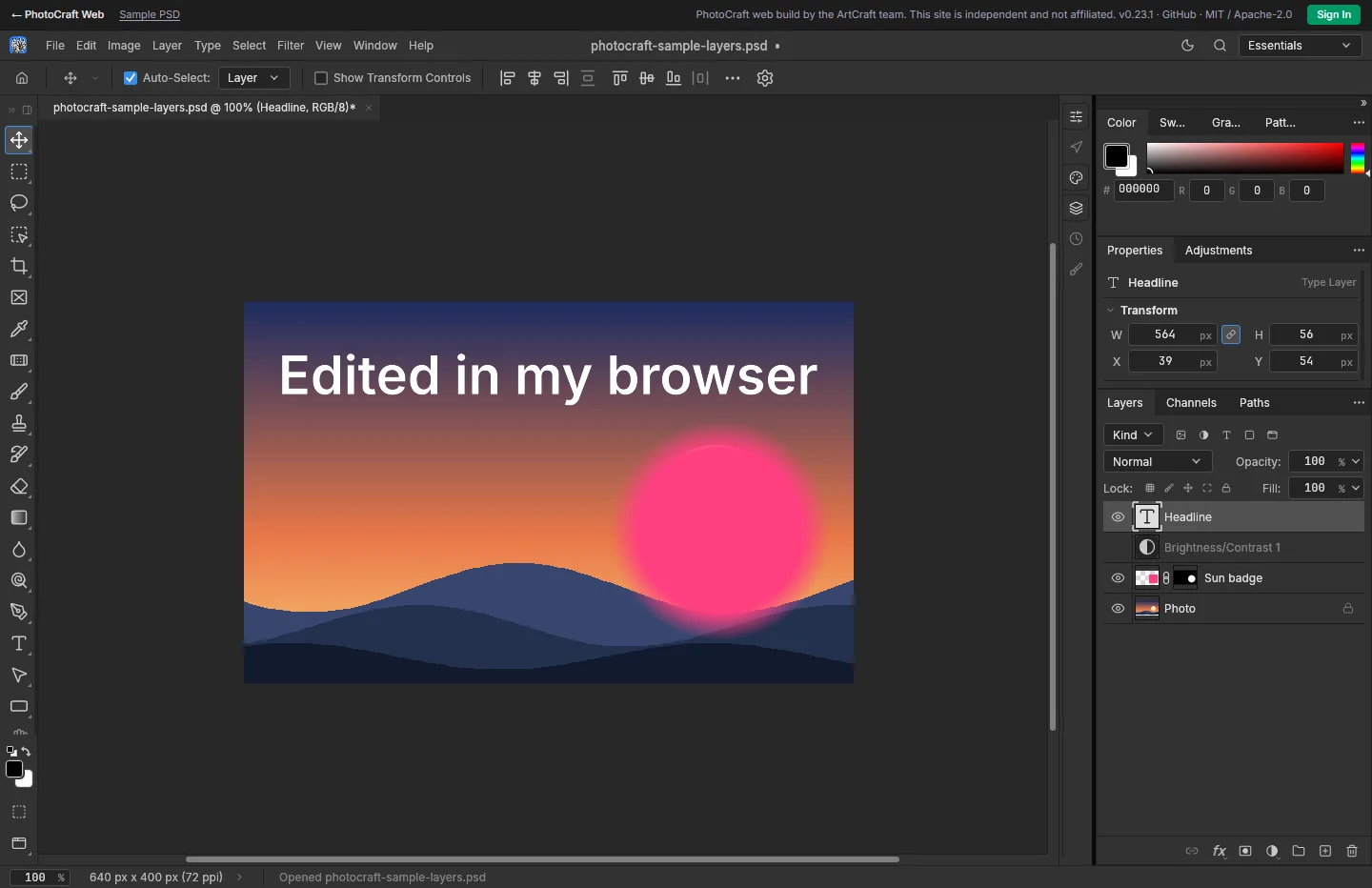
Pick the Type tool (the T in the toolbar), click the headline, select all with Ctrl+A (⌘A on a Mac) and type a new headline. Choose the Move tool to finish. Then click the eye next to Brightness/Contrast 1 to switch it off: the whole picture gets visibly darker and flatter.
3. Save a new PSD
Choose File → Save As…. The web editor has no save dialog: your browser downloads the file under the name it was opened with (photocraft-sample-layers.psd). We renamed it edited-sample.psd so the two files can be told apart.
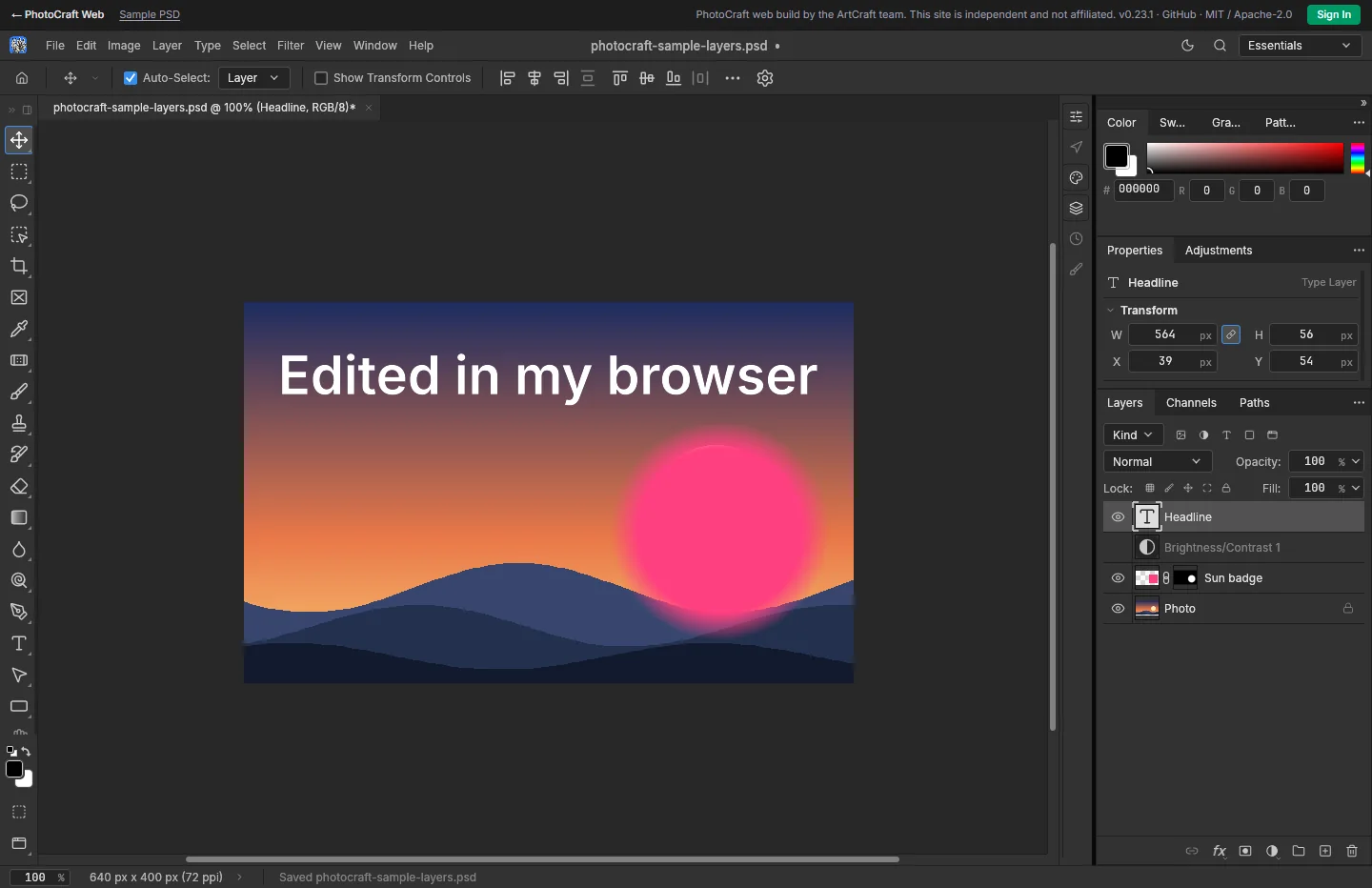
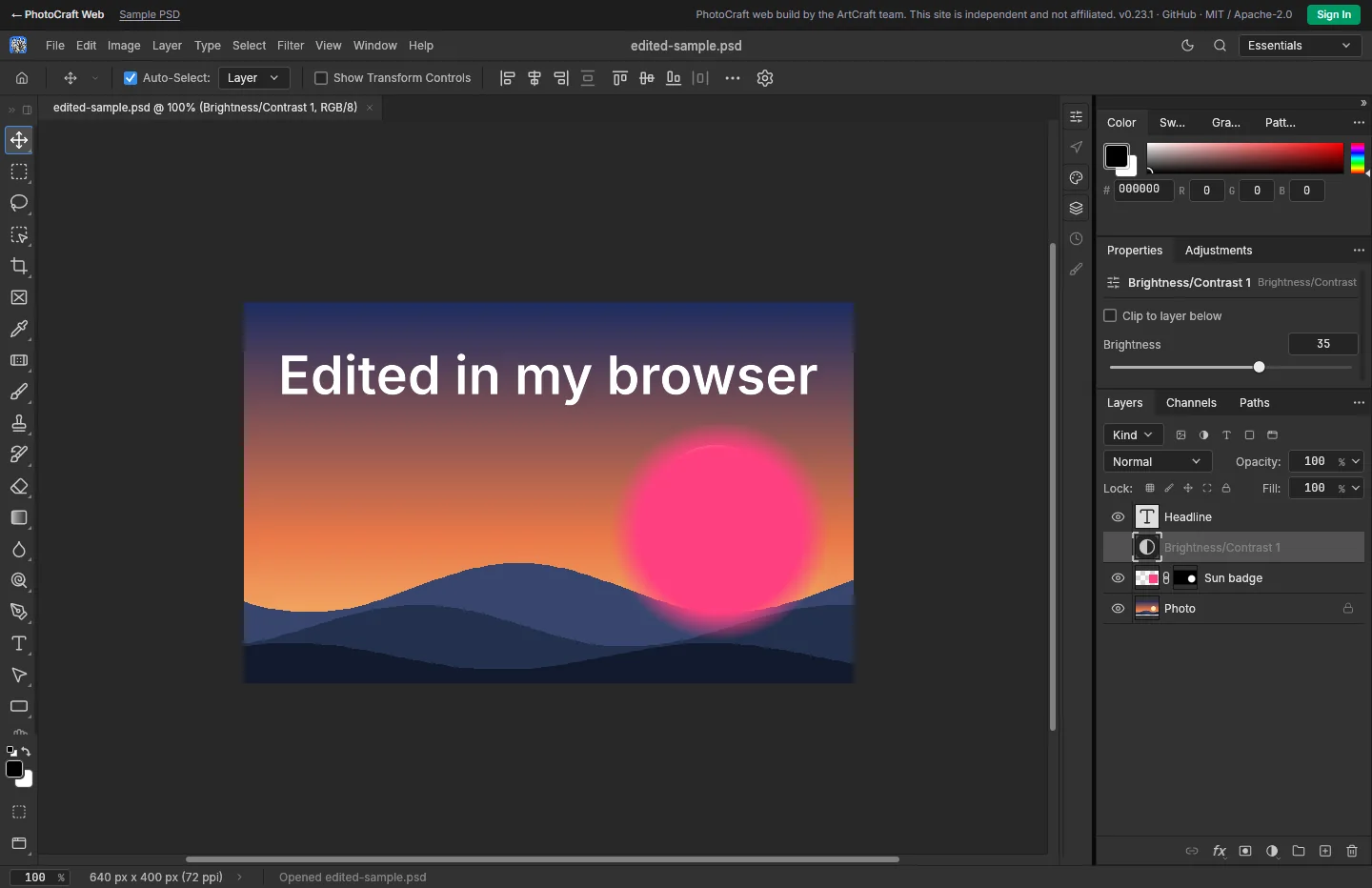
We then opened the downloaded file with a PSD reader that is not PhotoCraft. It found the same four layers in the same order. Headline is still a type layer and reads "Edited in my browser"; Sun badge still has its mask, and the mask's pixels are identical to the original; Brightness/Contrast 1 is still a Brightness/Contrast layer with brightness 35 and contrast 25, switched off as we left it.
4. Reopen it and confirm the layers are intact
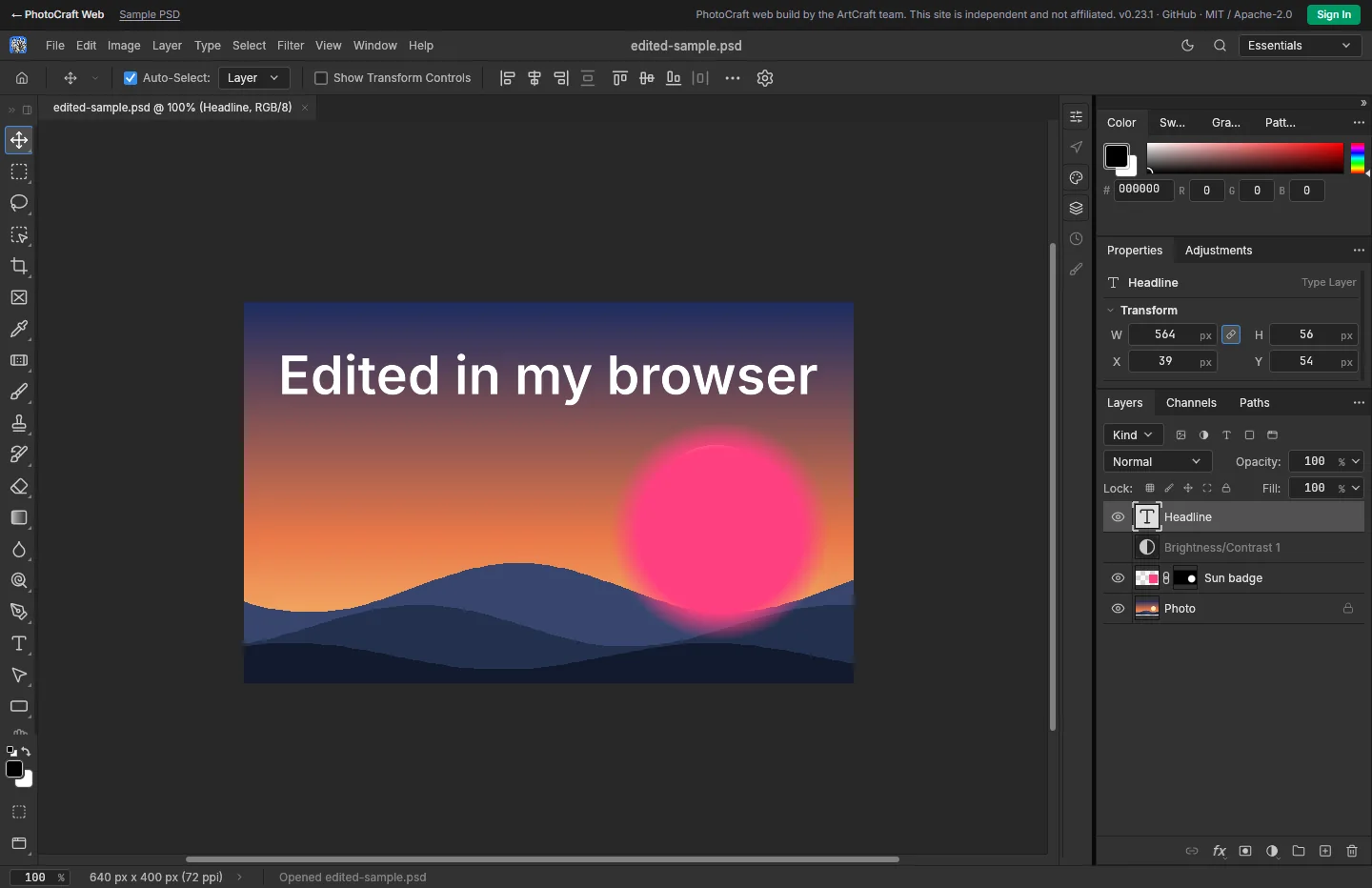
In a fresh editor page, File → Open… the saved file. Headline is still a type layer, the mask is still on Sun badge, and the adjustment layer is still there, off, with its brightness at 35.
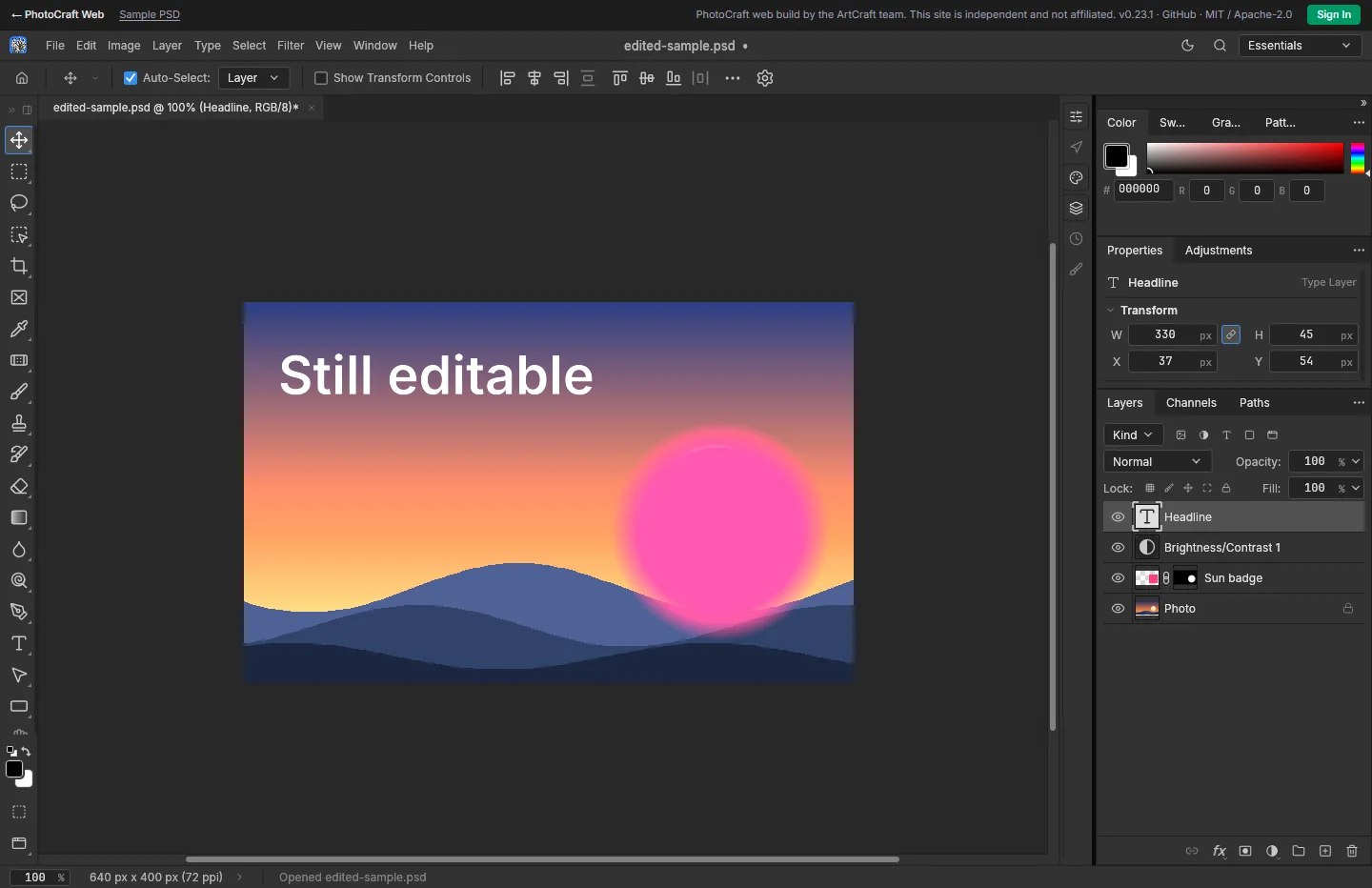
To check the text really is still editable and not just a picture of text, we switched the adjustment layer back on, edited the headline again ("Still editable") and saved a second time. That file also reads correctly in the other PSD reader: Headline is a type layer reading "Still editable", the mask is unchanged, the adjustment layer is on with the same settings.
5. Export a PNG
Choose File → Export → Quick Export as PNG. This is the file the editor produced, untouched: 640 × 400, white headline over the brightened picture, the round masked badge intact.
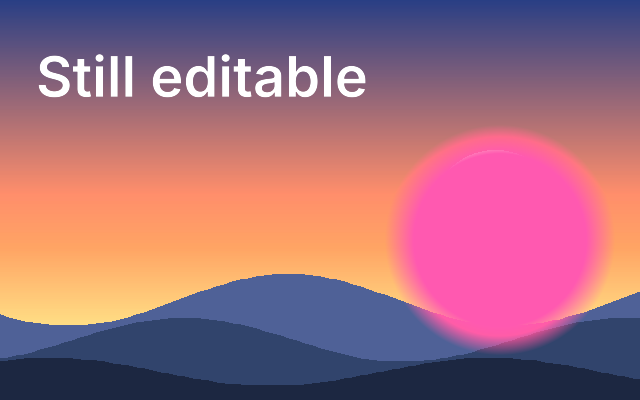
The exported PNG, byte for byte as the editor produced it.
Everything the test checked
Each line below was checked by the script against the files the editor produced, not by eye.
✓ Download the sample PSD and open it
- ✓ the download is a PSD file
- ✓ the published file holds the four expected layers
✓ Change the headline and switch the adjustment layer off
- ✓ switching the adjustment layer off visibly changes the picture
✓ Save a new PSD
- ✓ the browser downloaded a PSD (photocraft-sample-layers.psd)
- ✓ first save: canvas is still 640 x 400
- ✓ first save: the same four layers in the same order
- ✓ first save: Headline is still a type layer (editable text)
- ✓ first save: Headline reads 'Edited in my browser'
- ✓ first save: Headline keeps its font ('Inter-Bold')
- ✓ first save: the adjustment layer is still a Brightness/Contrast layer
- ✓ first save: its settings are unchanged (brightness 35, contrast 25)
- ✓ first save: the adjustment layer is off, as left
- ✓ first save: Sun badge still has its layer mask
- ✓ first save: the mask's pixels match the original (largest difference 0 of 255)
✓ Reopen the saved PSD and confirm nothing was lost
- ✓ after reopening and saving again: canvas is still 640 x 400
- ✓ after reopening and saving again: the same four layers in the same order
- ✓ after reopening and saving again: Headline is still a type layer (editable text)
- ✓ after reopening and saving again: Headline reads 'Still editable'
- ✓ after reopening and saving again: Headline keeps its font ('Inter-Bold')
- ✓ after reopening and saving again: the adjustment layer is still a Brightness/Contrast layer
- ✓ after reopening and saving again: its settings are unchanged (brightness 35, contrast 25)
- ✓ after reopening and saving again: the adjustment layer is on, as left
- ✓ after reopening and saving again: Sun badge still has its layer mask
- ✓ after reopening and saving again: the mask's pixels match the original (largest difference 0 of 255)
✓ Export a PNG
- ✓ a 640 x 400 PNG came out (PNG, 640 x 400)
- ✓ the PNG shows the white headline over the picture (4821 near-white pixels where it sits)
What this does not prove
- It is one sample file, built to the spec, not a file Photoshop saved. Real files add smart objects, layer styles, groups, other fonts and colour modes that we have not tested here.
- It is one browser on one system (Google Chrome 157.0.8103.78 on Windows 11 (10.0.28000), WebGPU). Other browsers and operating systems, and the WebGL2 renderer, were not part of this run.
- Fonts: we only tested Inter. The web build ships only Inter and JetBrains Mono, so text set in any other font in a PSD is drawn with a stand-in font in the browser. We did not test how that round-trips.
- Chinese, Japanese and Korean text is not covered: the web build has no fonts for those scripts (see the language guide).
- After saving, PhotoCraft stores the mask over a slightly smaller rectangle (it trims empty edges: 5 pixels each side here). The mask's pixels are identical; this is only how it is stored.
About the hosted build
This site serves PhotoCraft web build 0.23.1, released 2026-11-12, from the project's release page. The files are served as published, with one change to where a file sits: that release's web package does not start on its own, because the app's loader asks for a helper script at app/snippets/… while the package puts it at the top level. The browser then stays on “Loading PhotoCraft…”. The project's issue tracker reports this from v0.17.0 onward (issue #10017, with a fix proposed in pull request #10248 that is not released yet), and we reproduced it with v0.23.1. We place a byte-identical copy of that one script where the loader looks for it. No file's contents are changed.
Repeat it yourself
- Download the sample PSD and open it in the editor.
- Change the headline and switch the Brightness/Contrast layer off.
- Choose File → Save As…, then open the downloaded PSD again.
- Check that the Headline layer is still marked as a type layer and still edits, that the round mask thumbnail is on Sun badge, and that Brightness/Contrast 1 is still there with brightness 35.
- Choose File → Export → Quick Export as PNG and look at the result.
If a step behaves differently on your browser or system, note the browser version, the operating system and which step it was: that is what is needed to reproduce it.